After installing or
upgrading to the latest version of Ubuntu you find yourself wondering
what to do next. No worries, here’s our list of 10 things to do after
installing Ubuntu 13.04.
These range from the obvious (but often forgotten) to the obscure
(but super handy). Each entry aims to help all users, newcomer and
seasoned-pro alike, get the most from Ubuntu.
1. See What’s Changed
Whether Ubuntu 13.04 is your first taste or you’re coming back for more, it helps to know what has changed on the desktop.
And while Ubuntu 13.04 isn’t as heavy on new features as previous
releases have made us accustomed to, it does adds some much needed
finesse and polish to the desktop experience.
To get you up to speed we’ve compiled a selection of the
key features available in Ubuntu 13.04 into a bouncy little video….
2. Enable Additional Drivers

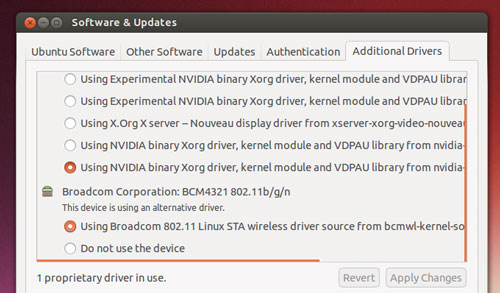
Ubuntu works well with most modern hardware out of the box, but you
may want to enable third-party drivers to get the best performance.
This is a must if you’re looking to
play games from Steam;
watch high-definition video; or just generally
want a more peppy-feeling and responsive desktop.
Some
WiFi Cards also require ‘proprietary’ drivers to function properly.
But you don’t need to take to the web to hunt down drivers. Just open the
Software Sources app via the Dash (or through
System Settings) and click the
‘Additional Drivers‘ tab to see what’s available for your device.
3. Enable Music & Video Playback
For legal reasons
Ubuntu isn’t able to play certain music and film formats by default.
The good news is that installing what’s needed to enable this is a just a click or so away.
If you’re reading this
before installing Ubuntu then check the
’Enable Restricted Formats’ box during initial set-up.
If you’re reading
after install, no worries – just
hit the button below to install the most commonly used audio and video codecs.
4. Add & Manage Your Online Accounts

Ubuntu comes with a centralised hub for your online accounts. Rather
than having to manually enter log-in details for every app, you just add
it once to ‘Online Accounts’ so other applications can use the data
securely.
A new feature in Ubuntu 13.04 lets you
choose which applications can use which online account. Don’t want Empathy to login to Facebook Chat? Switch it off. Fed up of your Google Docs in the Dash? Disable it.
Services supported include Twitter, Google, Yahoo!, Facebook (including Facebook Chat), Flickr, and many more.
Apps that ‘hook in’ to
Online Accounts include Ubuntu’s instant messaging app
Empathy; the new
Social lens; and photo manager
Shotwell.
5. Install Your Favourite Apps

Ubuntu comes pre-installed with a wide selection of software –
including a fully-featured office suite, music and video apps,
web-browser, etc.
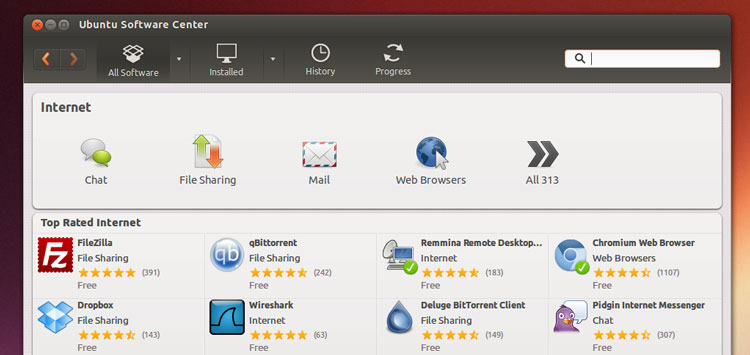
But one-size doesn’t fit all; there may be another app you prefer
using or need. Just open the Ubuntu Software Center to browse and
install thousands of free applications, including popular choices like:
- Chromium - Open-source version of Google Chrome web-browser
- GIMP – Free Photoshop alternative
- Skype – Instant Messaging & Video Chat App
- Hotot – Desktop twitter app
- VLC – Popular media player
6. Adjust Your Privacy Settings

To speed up your workflow the
Unity Dash offers you an
overview of your recent application and file activity. Handy, for sure,
but there might be files, folders or activities that you don’t want
tracked.
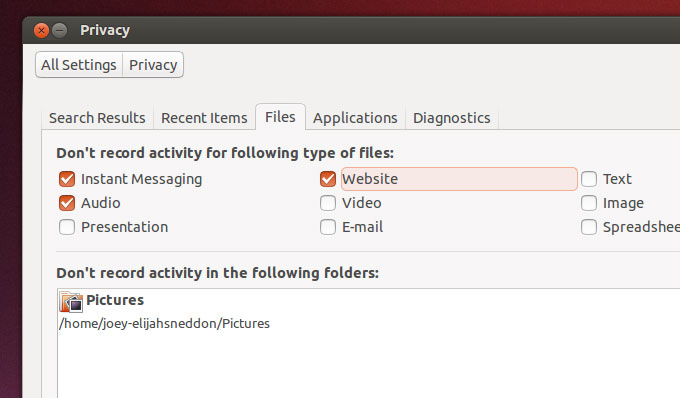
Along with an “Off” switch, the
Privacy options available in the
System Settings lets you choose what content is logged and what isn’t. Further more it offers up buttons to ‘clear’ data from given periods.
7. Blur The Lines Between Web & Desktop

A lot of people forget that Ubuntu comes with an innovative web-app integration feature. Over
30 popular websites – including Gmail, YouTube & BBC News – are supported.
For example, add
GMail and you get fancy Gmail options in the Launcher and Messaging Menu; enable
BBC News and you’ll get notification alerts on new headlines, and so on.
8. Axe Amazon Suggestions
Ubuntu’s
new ‘Smart Scopes’ service wasn’t ready in time for Ubuntu 13.04,
so the Dash isn’t as clever as it should be. Meaning that, yes, Amazon
product suggestions will appear in the Dash for whatever you search.
The good news is that feature can be switched off with a click, so there’s no need to avoid using Ubuntu altogether.
Open the
Privacy pane of
System Settings and set the
‘Include Online Search Results’ toggle to
‘Off’.
Be aware that switching this ‘off’ will also affect other lenses that require an internet connection – including the Music lens and Social lens.
Our tip? If you want to keep everything else working, but don’t want Amazon result, just open the Ubuntu Software Center, search for ‘shopping lens’ to find it, then hit the ‘remove’ button to uninstall it permanently.
9. Set up Ubuntu One
If you’ve not heard of Ubuntu One by now then you’re missing out!
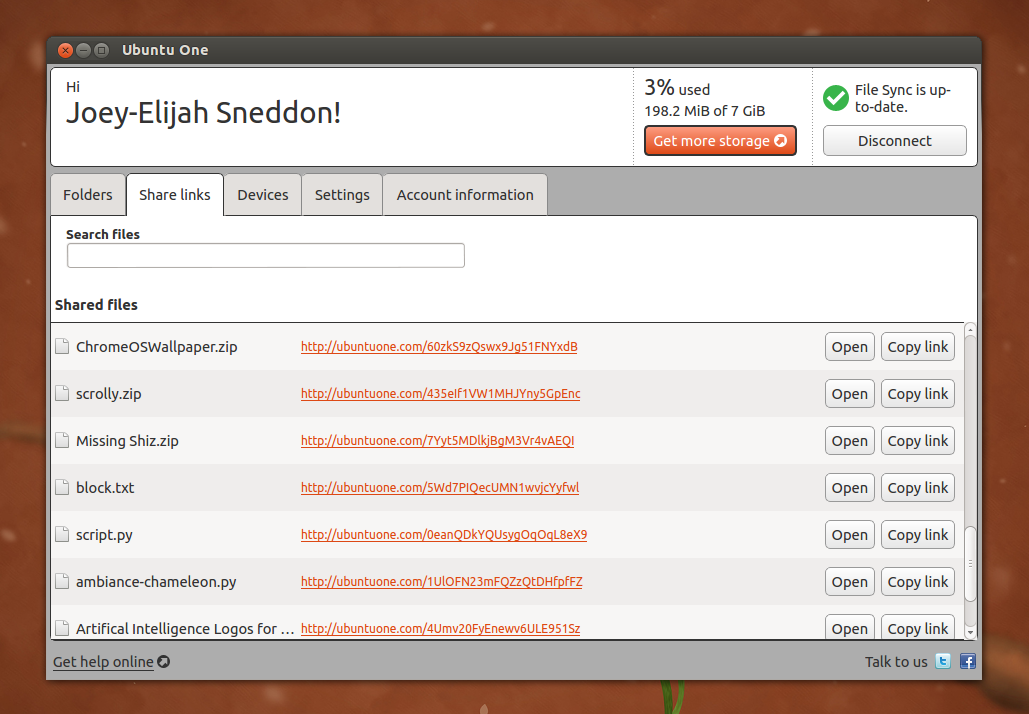
It’s a free cloud-storage service available for everyone. You get
5GB of space for free in-which to store files, photos, music and more.
There are apps for iOS, Android, Windows,
and OS X, so no-matter what computer you’re on you can have your life in sync
and in reach wherever you are or whatever you’re doing.
To get started hit the ‘
Ubuntu One’ icon on the Launcher and follow the prompts that appear.
If you already have an Ubuntu One account then hit the
‘Sign In’ button to start syncing your files to your new desktop.
10. Spread The Word about Ubuntu 13.04
This item on our to-do list is a little cheesy, but it’s an important
one: If you like what you see, and find Ubuntu 13.04 useful then put
sharing word of it on
your to-do list.
Whether you just post about it on Twitter, Facebook or Google+, or
actively burn a LiveDVD for a family member to try out, you’ll be not
only helping others explore their options, but you’ll also be helping
Ubuntu.
Don’t forget to enjoy using it, too. Go Check your Facebook or
Google+ profile; chat to your mates on Empathy; type up a letter in
LibreOffice or find some awesome cat videos in the Unity Video Lens.